
If your Desktop device shows this error, it could have been caused by any of the following:
- It had been a while since you last opened and used Signal Desktop.
- Copying the Signal data folder to this computer from another computer.
- Using the same Desktop data from multiple devices, either from a shared location, or data copied from one computer to another.
- Using Signal in a (corporate) environment or while connected to a network with restrictions.
- Resetting the computer password or iCloud password.
- Opening Signal before your system’s keyring or secret storage has unlocked.
In some cases it’s possible to recover. Signal Desktop stores its local database key in your operating system’s secret storage service (such as a keyring or wallet on Linux, Keychain on macOS, or Credential Manager on Windows), and if that service hasn’t finished unlocking yet when Signal starts, usually right after login, Signal can’t retrieve the key and shows a startup error. This typically resolves on its own once the secret storage service is unlocked (for example, when you enter its password, or when another application triggers the unlock prompt), after which simply reopening Signal should work normally.
In cases where recovery is not possible, you will need to reinstall Signal Desktop and relink it to your primary Signal Android or iOS app. Relinking your desktop will not delete messages from your phone. You'll also have the option to transfer message history from your phone during the linking flow.
Reinstall Signal Desktop and relink with Message History
To uninstall and remove all data from the Signal Desktop app, follow steps for your computer OS below.
macOS:
- Delete the Signal.app file from the /Application or ~/Application directory
- Delete local data from ~/Library/Application Support/Signal
- Reinstall Signal desktop via this link: https://signal.org/download
Windows:
- Select 'Uninstall Signal.exe' in C:\Users<Your Name>\AppData\Local\Programs\signal-desktop
- Delete C:\Users\<YourName>\AppData\Roaming\Signal
- Reinstall Signal desktop via this link: https://signal.org/download
Linux:
- Run the command: apt-get remove signal-desktop
- Delete ~/.config/Signal
- Reinstall Signal desktop via this link: https://signal.org/download
Transfer Message History from mobile to Desktop
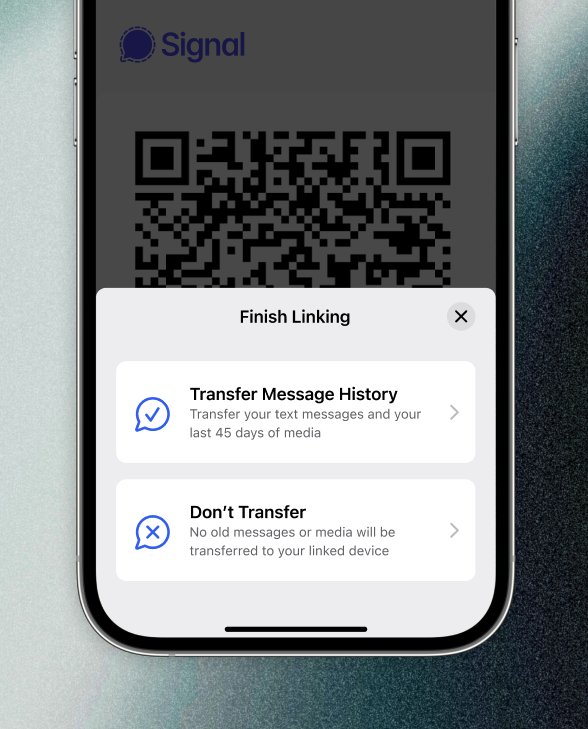
After reinstalling Signal Desktop and scanning the QR code with your smartphone you will have the option to Transfer Message History and the last 45 days of media from mobile to Desktop.
If Don't transfer is selected or you change your mind later, you'll need to repeat the steps above to uninstall and remove all Signal Desktop data then relink and choose the transfer option.