
Signal gets better with every update. Here's how to make sure you can get every one:
Android
What is the latest version of Signal Android?
Check Google Play for the latest version number and a list of updates.
Which version of Signal Android do I have?
On your phone, open Signal and navigate to Signal Settings  > Help > Version.
How do I update Signal Android?
-
Automatically
To set up automatic updates for Signal and your other apps follow steps from Google's support page here. -
Manually
Find the latest version by visiting https://signal.org/install on your phone or going directly to the Signal store page for your Android phone. If a new version is available to you on your phone, you will see the option to update. Select update and open Signal.
Having issues updating Signal Android? Follow these troubleshooting steps.
iOS
What is the latest version of Signal iOS?
Check the App Store for the latest version number and a list of updates.
Which version of Signal iOS do I have?
On your phone, open Signal and navigate to Signal Settings > Help > Version.
How do I update Signal iOS?
-
Automatically
To set up automatic updates for Signal and your other apps follow steps from Apple's support page here. -
Manually
Find the latest version by visiting https://signal.org/install on your phone or going directly to the Signal store page. If a new version is available to you on your phone, you will see the option to update. Select update and open Signal.
Having issues updating Signal iOS? Follow these troubleshooting steps.
Desktop
What is the latest version of Signal Desktop?
A list of the latest updates is available on GitHub along with the version number and release notes that highlight new features and functionality.
Which version of Signal Desktop do I have?
To check your Signal Desktop version number, simply follow the steps for your operating system:
- Windows
- Go to Signal Desktop > Help > About
- macOS
- Go to Signal Desktop > About Signal Desktop
- Linux
- Go to Signal Desktop > Help > About
How do I update Signal Desktop?
-
Windows or macOS
- Signal periodically checks for updates and also checks for updates during startup. Quit and reopen the app at any time to see if an update is available.
- When an update is available, a blue banner will appear above the chat list.
- Select “Click to restart Signal” or "Click to download update" from the blue banner to launch the latest version.
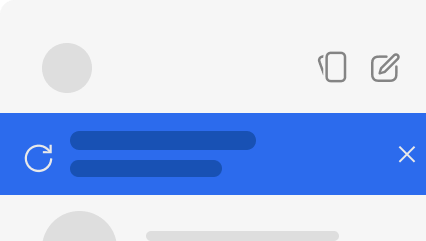
- Select “X” to dismiss the alert and see a blue indicator dot in Signal Settings. To update, go to Signal Settings >
 Update Signal or quit and reopen the app.
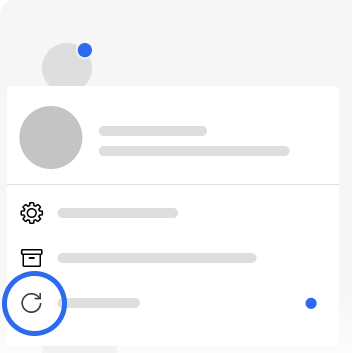
- Select “Click to restart Signal” or "Click to download update" from the blue banner to launch the latest version.
-
Linux
- Updates are handled through APT.
- Debian and Ubuntu desktop environments check for new APT packages automatically, and your system will prompt you when updates are available.
- You can also launch the “Software Updater” app to check for new updates.
- Or you can run the following command from a terminal window to update Signal:
sudo apt update && sudo apt install signal-desktop - After the app is updated, simply restart Signal to launch the new version.
Having issues updating Signal Desktop? Follow these troubleshooting steps.