
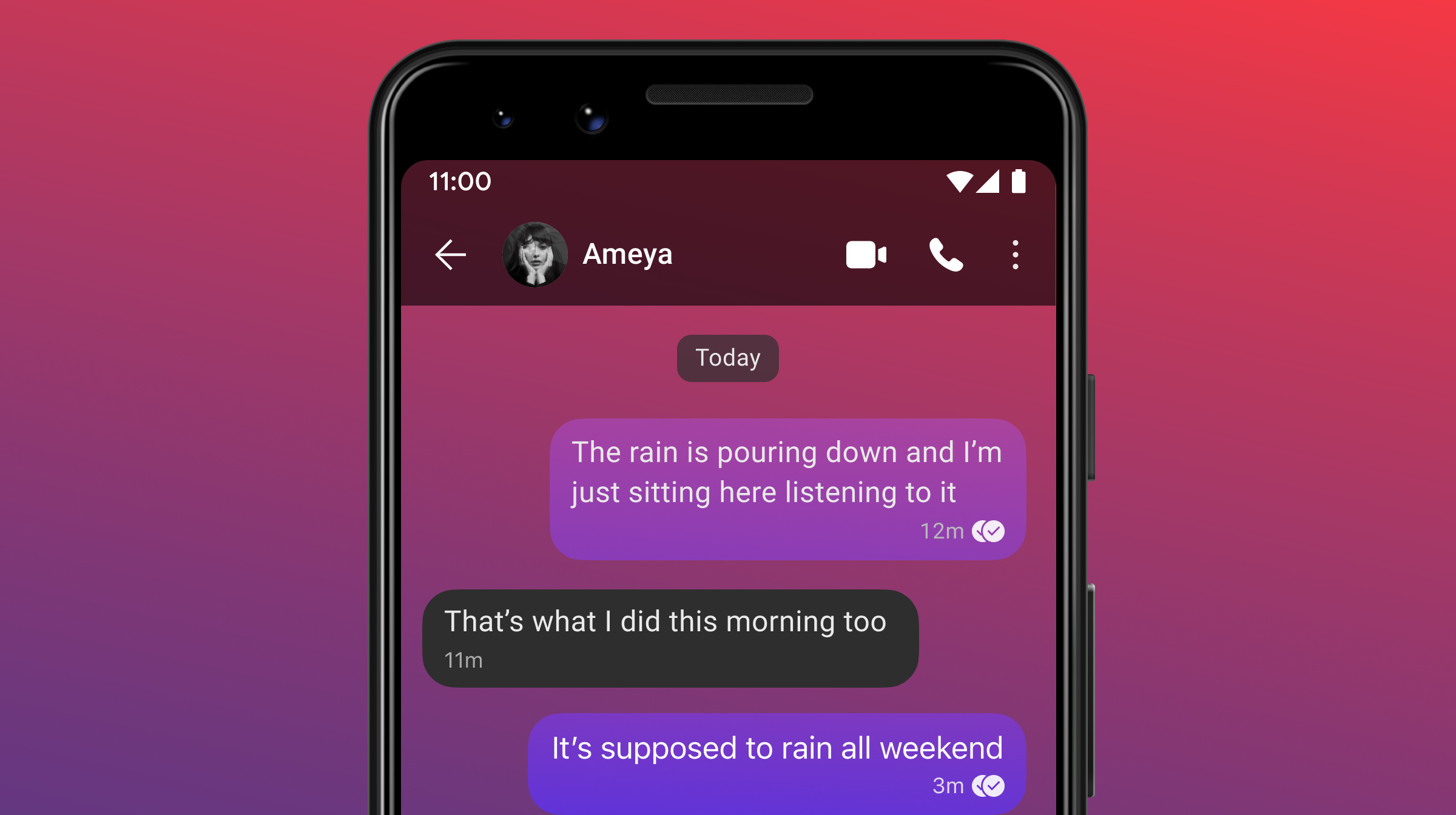
Set color gradients on messages, choose unique wallpapers for individual chats or just set one default background to apply to all chats.
Who can see the colors and wallpaper that I chose?
Only you. This displays on your screen only.
Why doesn’t the color of someone’s name in a group chat match their avatar color?
A color is randomly assigned to the name to ensure highest contrast between users in the group. This should improve readability and accessibility.
Follow these steps to manage colors and themes:
Android
To change sent message bubble colors:
- Decide to edit the default for all chats or edit a specific chat
- For default, go to Signal Settings
 >
 Appearance
- For a specific chat, go to chat settings
- For default, go to Signal Settings
- Select Chat Color & Wallpaper > Chat Color
- Select a color or make your own
- Auto matches the color to the wallpaper
- Select the
 to create a custom color
- Tap Solid or Gradient
- For Gradient, select and drag a point to change the direction of the gradient
- Tap a point to edit just that color
- Drag along the color sliders
- Tap Solid or Gradient
- Tap and hold on a custom color to edit, duplicate, or delete
- Tap Set
- For the default, all the chats that previously did not have a specific color will display this change for your phone only
- For a specific chat, this change is on your phone only
To set the chat background or wallpaper:
- Decide to edit default for all chats or edit a specific chat
- For default, go to Signal Settings > Appearance
- For a specific chat, go to chat settings
- For default, go to Signal Settings
- Select Chat Color & Wallpaper > Set Wallpaper
- Choose from photos or select a color
- Tap Set
- For default, all the chats that previously did not have a specific wallpaper will display this change for your phone only
- For a specific chat, this change displays immediately for your phone only
To change the theme:
- In Signal, tap your profile > Appearance > Theme
- Pick System, Light or Dark
iOS
To change sent message bubble colors:
- Decide to edit the default for all chats or edit a specific chat
- For default, go to Signal Settings >
 Appearance
- For a specific chat, go to chat settings
- For default, go to Signal Settings
- Select Chat Color & Wallpaper > Chat Color
- Select a color or make your own
- Auto matches the color to the wallpaper
- Select the to create a custom color
- Tap Solid or Gradient
- For Gradient, select and drag a point to change the direction of the gradient
- Tap a point to edit just that color
- Drag along the color sliders
- Tap Solid or Gradient
- Tap and hold on a custom color to edit, duplicate, or delete
- Tap Set
- For the default, all the chats that previously did not have a specific color will display this change for your phone only
- For a specific chat, this change is on your phone only
To set the chat background or wallpaper:
- Decide to edit default for all chats or edit a specific chat
- For default, go to Signal Settings > Appearance
- For a specific chat, go to chat settings
- For default, go to Signal Settings
- Select Chat Color & Wallpaper > Set Wallpaper
- Choose from photos or select a color
- Tap Set
- For default, all the chats that previously did not have a specific wallpaper will display this change for your phone only
- For a specific chat, this change displays immediately for your phone only
To change the theme:
- In Signal, tap your profile > Settings > Appearance > Theme
- Pick System, Light, or Dark
Desktop
To change sent message bubble colors:
- Decide to edit the default for all chats or edit a specific chat
- For the default, go to Signal Settings >
 Preferences > Appearance
- For a specific chat, go to chat settings
- For the default, go to Signal Settings
- Select Chat Color
- Select a color or make your own
- Select the to create a custom color
- Tap Solid or Gradient
- For Gradient, select and drag a point to change the direction of the gradient
- Select a point to edit just that color
- Drag along the color sliders
- Tap Solid or Gradient
- Double click a custom color to edit, duplicate, or delete
- Select the
- Select Save
- For the default, all the chats that previously did not have a specific color will display this change for your desktop only
- For a specific chat, this change is on your desktop only
Wallpaper:
-
- Chat background colors are not yet available.
To change the theme:
- In Signal, tap your profile > Preferences > Appearance
- Under Theme, pick System, Light, or Dark