
Some conversations can be chatty, some messages are meant for business hours only, and some people deserve to be prioritized. Use the steps below to modify your notification options to reflect your relationship preference for your chat.
Did you mean to view:
Android
In addition to your OS notification options and permissions, Signal Android has in-app notification settings and separate chat settings.
- Manage message and call notifications
- Change notification text
- Mute or hide notifications
- Custom notification sounds
- Quick reply and lock screen notifications
To manage message and call notifications:
- In Signal, tap your profile
 > Notifications.
To change the text in your notification:
- In Signal, tap your profile > Notifications > Show.
- Select one of the following
- Name and message
-
Name only
- Using this setting, you will not see which reaction your contact selected. The reaction will still appear on your message bubble in the chat.
-
No name or message
- Using this setting, you will not see updates of who reacted or which reaction they used to any messages. The reaction will still appear on your message bubble in the chat.
- If Signal is locked, you will see Locked message in place of your selection above until you unlock Signal.
To hide notifications and badges, mute a chat:
- Open the chat with your contact.
- Tap the contact name or header to view chat settings.
- Tap Mute notifications.
- Select how long you want to mute notifications for this chat
- 1 hour
- 8 hours
- 1 day
- 7 days
- Always
- You will see a mute icon
 by the contact name or header.
- Using this setting, you will not see updates of who reacted or which reaction they used to any messages. The reaction will still appear on your message bubble in the chat.
To set custom notification sounds per contact including silent notifications:
- Open the chat with your contact.
- Tap the contact name or header to view options.
- Tap Sounds and notifications.
- Tap Custom notifications.
- Select options for message and call notifications.
To manage quick reply options and lock-screen notifications:
- Follow steps to modify your OS notification options.
Notification profiles:
For info on Notification profiles, see our FAQ page here.
Having issues with Android notifications? Follow these troubleshooting steps.
iOS
In addition to your iOS notification options and permissions, Signal iOS has in-app notification settings and separate chat settings.
To change the text in your notification:
- In Signal, tap your profile > Settings > Notifications > Show.
- Select one of the following
- Name, Content, and Actions
-
Name only
- Using this setting, you will not see which reaction your contact selected. The reaction will still appear on your message bubble in the chat.
-
No Name or Content
- Using this setting, you will not see updates of who reacted or which reaction they used to any messages. The reaction will still appear on your message bubble in the chat.
To hide notifications, mute a chat:
- Open the chat with your contact.
- Tap the contact name or header to view chat settings.
- Tap Sounds and Notifications
- Tap
 Mute.
- Select how long you want to mute notifications for this chat
- 1 hour
- 8 hours
- 1 day
- 1 week
- Always
- You will see a mute icon
 by the contact name or header.
- Using this setting, you will not see updates of who reacted or which reaction they used to any messages. The reaction will still appear on your message bubble in the chat.
- Optionally, choose to display a badge count for muted chats.
- Tap your profile > Settings > Notifications > Count Muted Conversations
- Tap your profile
To manage the send message sound:
- In Signal, tap your profile > Settings > Notifications.
- Tap Play While App is Open to manage the sound you hear each time you send a message
- To enable, tap the slider so it is green.
You may need to adjust your phone's silent/vibrate switch to Ring mode. See Apple's support page. - To disable, tap the slider so it is grey.
- To enable, tap the slider so it is green.
To set custom notification sounds per contact including silent notifications:
iOS only supports tones with file types .aiff, .wav, or .caf.
- Open the chat with your contact.
- Tap the contact name or header to view chat settings.
- Tap
 Message Sound.
- Select your choice.
- Tap Save.
Notification profiles:
Notification profiles are not available for iOS at this time.
Having issues with iOS notifications? Follow these troubleshooting steps.
Desktop
- Manage message and call notifications
- Manage OS notifications
- Change notification text
- Mute or hide notifications
- Change notification sounds
To manage message and call notifications:
- In Signal, go to
 Preferences > Notifications
For additional call settings:
In Signal, go to Preferences > Calls and select among:
- Enable incoming calls
- Play call sounds
- Always relay calls
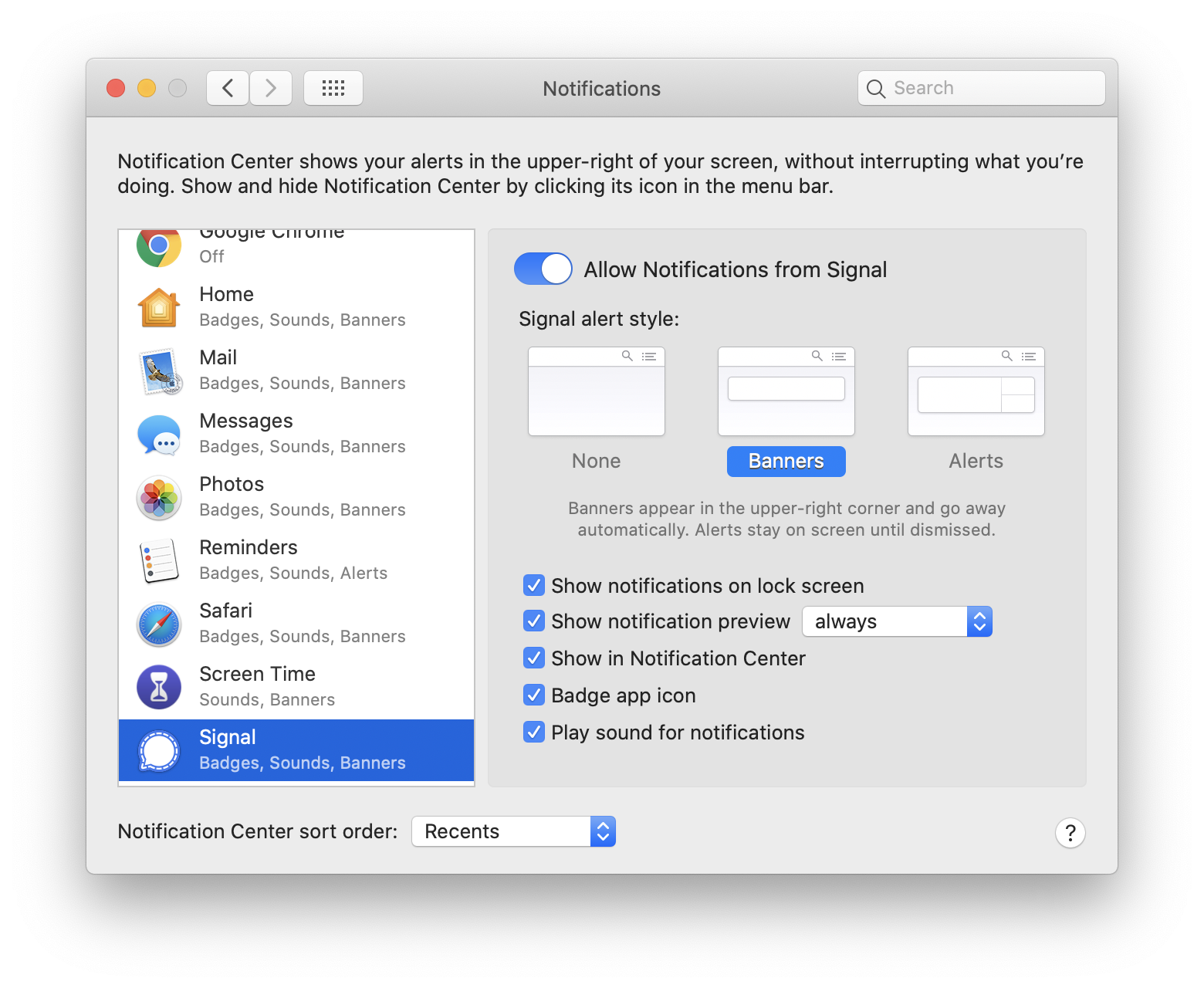
To manage notifications on macOS including the lock screen and badge count:
- Choose the Apple menu > System Preferences, then click Notifications.
- Select Signal in the left column and choose among the options.
To change the text in your notification:
- In Signal, tap your profile > Preferences.
- Select one of the following
-
Name, content, and actions
- macOS users will see "New Message" for all Disappearing Messages.
-
Name only
- Using this setting, you will not see which reaction your contact selected. The reaction will still appear on your message bubble in the chat.
-
No name or content
- Using this setting, you will not see updates of who reacted or which reaction they used to any messages. The reaction will still appear on your message bubble in the chat.
- Disable notifications
-
Name, content, and actions
To hide notifications, mute a chat:
- View the chat with your contact and tap on the header at the top of the screen to view the chat details.
- Tap Mute.
- Select how long you want to mute notifications for this chat
- 1 hour
- 8 hours
- 1 day
- 1 week
- Always
- You will see a mute icon
 by the message preview in the left pane.
- Using this setting, you will not see updates of who reacted or which reaction they used to any messages. The reaction will still appear on your message bubble in the chat.
To manage sound:
- In Signal, tap your profile > Preferences.
- Select the checkbox to Play audio notification to enable or disable.
Notification profiles:
For info on Notification profiles, see our FAQ page here.
Having issues with Desktop notifications? Follow these troubleshooting steps.