
Change Number is supported if you:
- are using an active Signal account. To test, send a message to the Note to Self contact.
- can receive SMS to your new number.
Change Number is not supported if you:
- can not send and receive Signal messages. To test, send a message to the Note to Self contact.
- do not have your old device or lost your phone.
- cleared your phone.
- cannot receive SMS to your new number.
Steps to change number
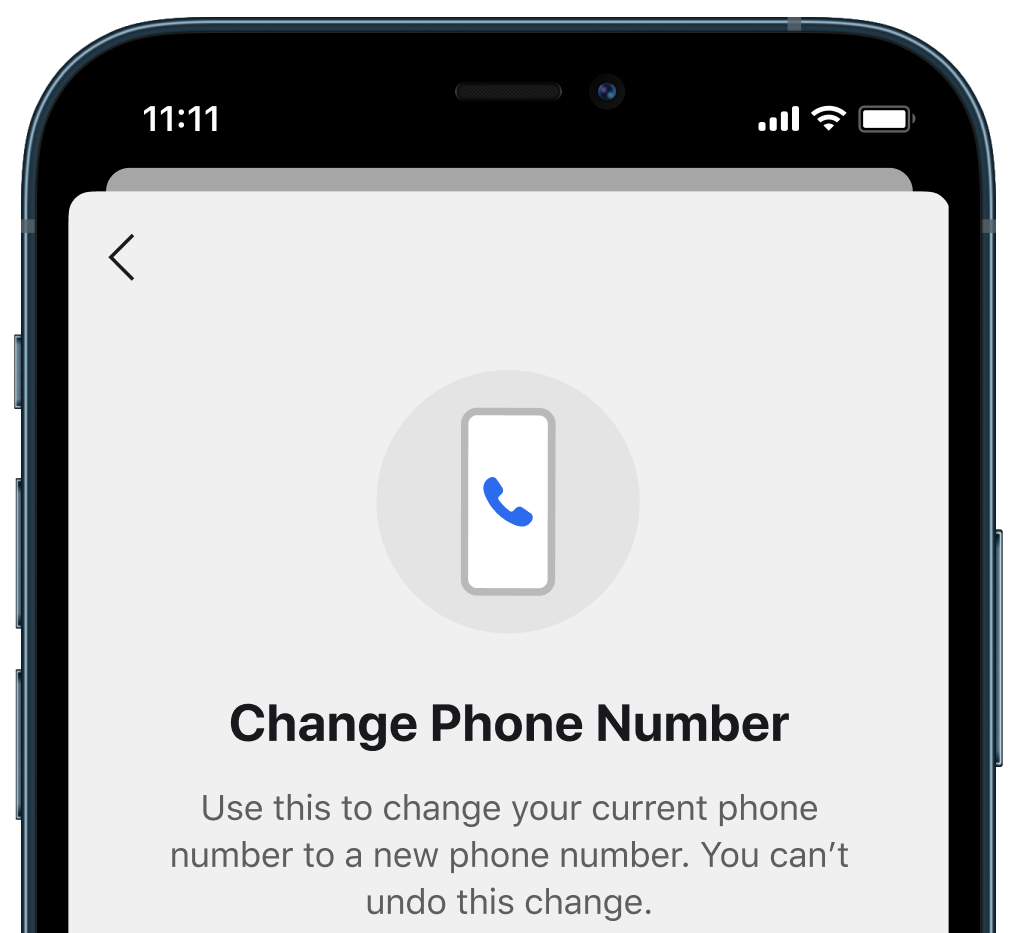
- On your phone, go to Signal Settings
 > Account > Change Phone Number.
- You will not be able to undo this. Select Continue.
- Enter your old number in the first field and your new number in the second field.
Note: SMS will not be sent to this old number. - Select Continue or Done.
- Confirm the new number is correct.
- Wrong Number? Tap Edit Number to change.
- Select Change Number.
- Follow the on-screen instructions to complete the registration process for the new number.
- If you had a username setup, it will remain the same even if you change number using the steps above.
What do my contacts see?
- Your saved contacts that you never chatted with will not see the alert of the phone number change. See also: Does Signal send my number to my contacts?
- Your contacts that you have chatted with before may see an alert in your chat that the phone number has changed.
