
Want to live life on the bleeding edge and help out with testing? If so, join Signal's beta!
- Join and Get Started with the Beta
- Update to the Latest Beta
- Provide Feedback
- Manage Beta Notifications
- Leave the Beta
Join and Get Started with the Beta
The beta is for users who do not mind discontinuity in service and are willing to work with us to understand and test issues.
Android
- Subscribe directly to the beta channel on Google Play.
- Your message history will remain as long as you do not uninstall Signal.
iOS
- Join directly through the App Store page and TestFlight app.
- Your message history will remain as long as you do not uninstall Signal.
Desktop
- Install directly using the links or steps for:
- macOS 13 and above
- Windows 10 and 11
-
Linux
Note that these instructions only work for 64 bit Debian-based Linux distributions such as Ubuntu, Mint etc.# 1. Install our official public software signing key wget -O- https://updates.signal.org/desktop/apt/keys.asc | gpg --dearmor > signal-desktop-keyring.gpg cat signal-desktop-keyring.gpg | sudo tee -a /usr/share/keyrings/signal-desktop-keyring.gpg > /dev/null # 2. Add our repository to your list of repositories echo 'deb [arch=amd64 signed-by=/usr/share/keyrings/signal-desktop-keyring.gpg] https://updates.signal.org/desktop/apt xenial main' |\ sudo tee -a /etc/apt/sources.list.d/signal-xenial.list # 3. Update your package database and install signal sudo apt update && sudo apt install signal-desktop-beta
- This is a new install with no message history. It is separate from the production version of Signal Desktop and will not replace it.
Update to the Latest Beta
Android
-
Automatically
To set up automatic updates for Signal Beta and your other apps:- Open the Google Play Store app
- Select Settings > Network Preferences
- Tap Auto-update apps
- Select an option:
- Auto update apps at any time to update apps using either Wi-Fi or mobile data
- Auto-update apps over Wi-Fi only to update apps only when connected to Wi-Fi
-
Manually
- Visit the Signal store page for your Android phone
- If a new version is available to you on your phone, you will see the option to update. Tap update and open Signal.
iOS
You will be notified by email from TestFlight or by notifications from the TestFlight app if it is enabled in iOS Settings > TestFlight.
-
Automatically
1. To set up automatic updates for Signal Beta:
2. Open the TestFlight app
3. Select SignalTap Automatic Updates
-
Manually
- Open TestFlight
- If a new version is available to you on your phone, you will see the option to update. Tap update and open Signal.
Desktop
When an update is available, a blue banner will appear above the chat list.
- Select “Click to restart Signal” or "Click to download update" from the blue banner to launch the latest version.
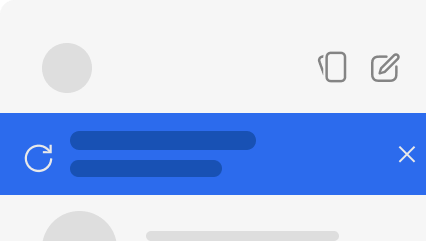
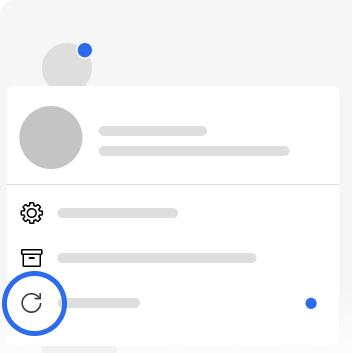
- Select “X” to dismiss the alert and see a blue indicator dot in Signal Settings. To update, go to Signal Settings
 >
 Update Signal or quit and reopen the app.
Provide Feedback
We incorporate beta feedback quickly to make these versions more stable and usable before they are available to everyone.
- Share feedback specific to the beta release on the community forum here.
- Include a debug log or crash report if there is a technical issue or crash.
Manage Beta Notifications
Android
Open the Play Store app > Settings > Notifications
iOS
Open the TestFlight app > Signal > Notifications
Desktop
Update prompts will appear in Signal Desktop automatically.
Leave the Beta
Android
Unsubscribe directly from the beta channel on Google Play.
iOS
- Open TestFlight > Select Signal > scroll to the bottom and select Stop Testing.
- Compare your current version number (Signal Settings > Help) to the one listed in the App Store.
- If your current version is the same or lower, then install directly from the store.
- If your current version is higher, wait until it is the same or lower than the version listed in the App Store.
Desktop
Delete Signal Desktop's Beta. This will clear your message history.
Note that the directory specifically for the beta is "Signal Beta".