
Archiving allows you to clear your chat list without deleting your messages.
Follow these steps to archive a chat:
Android
To archive
- Open Signal to view your chat list.
- Tap on the chat and swipe to the right or tap and hold and select
 Archive from the options at the top.
- You can quickly choose to undo through the alert on the bottom of the screen.
To view archived chats
- Scroll to the bottom of your chat list.
- Tap Archived conversations.
To unarchive
- Scroll to the bottom of your chat list.
- Tap Archived conversations.
- Tap on the chat and swipe to the right or tap and hold and select
 Unarchive from the options at the top.
- You can quickly choose to undo through the alert on the bottom of the screen.
iOS
To archive
- Open Signal to view your chat list.
- Tap on the chat and slowly swipe to the left.
- Select
 Archive.
To view archived chats
- Scroll to the bottom of your chat list.
- Tap Archived Chats.
To unarchive
- Scroll to the bottom of your chat list.
- Tap Archived Chats.
- Tap on the chat and slowly swipe to the left.
- Select Unarchive.
Desktop
To archive
Select the chat > Chat Settings  > Archive
or
Select the chat > use the keyboard shortcut ⌘ Shift A / Ctrl Shift A
To view archived chats
- Select Signal Settings

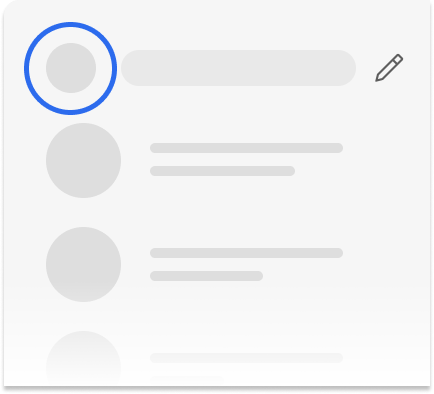
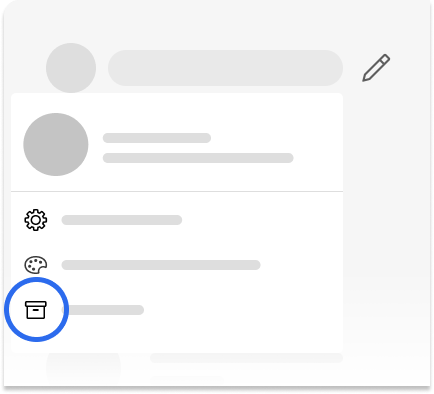
- Select
 View Archive
To unarchive
- Above your chat list, click ... > View Archive > select the chat.
- Within the chat, click ... > Unarchive.
or
- Select the chat > use the keyboard shortcut ⌘ Shift U / Ctrl Shift U