
Fast, simple, secure. Signal is privacy that fits in your pocket (or on your desk).
Download Signal here or follow the installation steps for your platform.
Signal users can send private messages and make secure calls to other Signal users anywhere in the world for free over the internet.
- All Signal-to-Signal communication is private and end-to-end encrypted.
- Signal-to-Signal messages are secure and free to send and receive using any internet connection enabled on your phone, including WiFi and mobile data.
Android
How to get started
- Confirm that your Android device is running Android 6.0 or later.
- Install and open Signal from the Google Play Store.
- Follow the on-screen instructions to complete the registration or linking process.
Having issues installing on an Android device? Follow these troubleshooting steps.
Reinstalling? Follow these steps to restore from a previously created backup or transfer from an existing phone.
iOS
How to get started
- Confirm that your iOS device is running iOS 15 or later.
- Install and open Signal from the Apple App Store.
- Follow the on-screen instructions to complete the registration process.
Having issues installing on an iPhone? Follow these troubleshooting steps.
Reinstalling on a new device? Follow these steps to transfer from another iOS device.
- Confirm that your iPad is running iPadOS 15 or later.
- Install and open Signal from the Apple App Store.
- Follow the on-screen instructions to link the iPad to your phone.
Note: Chat history is not transferred from the phone.
Already using an iPad? Update to the latest version or follow these troubleshooting steps for linking.
- Confirm that your iPad is running iPadOS 15 or later.
- Confirm you can receive SMS (not iMessage) or phone calls to that number.
- Install and open Signal from the Apple App Store.
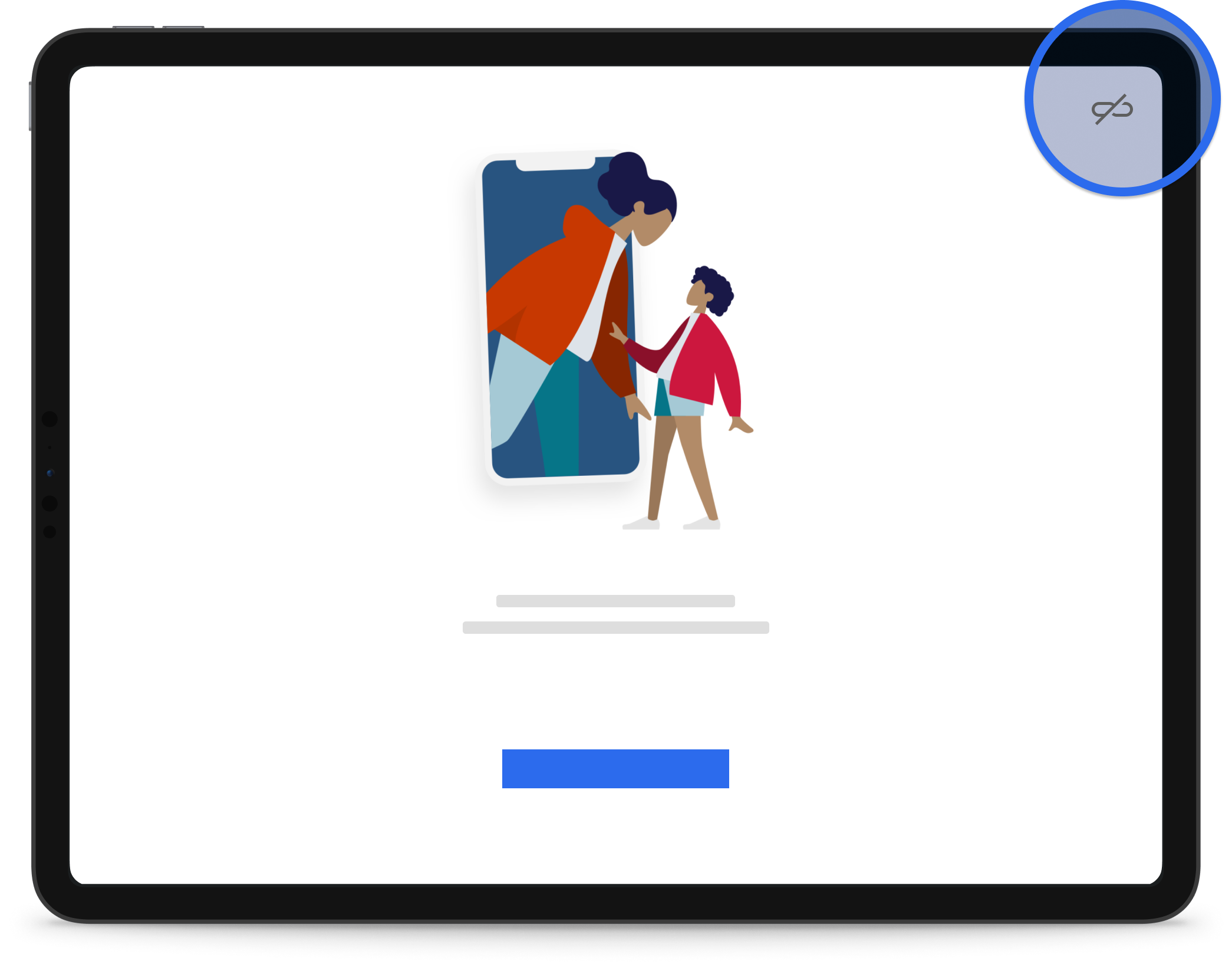
- Select the unlink icon
 in the top right.
- Follow the on-screen instructions to complete the registration process.
Linked Desktop
You can link Signal Desktop to your mobile device to send and receive messages from your computer.
Signal Desktop must be linked to Signal on Android or iPhone before it can be used.
Before you begin
Make sure:
- Signal is installed and working on your Android or iPhone
- Your computer meets the system requirements below
System requirements
- Windows: Windows 10 or 11
- macOS: macOS 13 or later
- Linux: amd64(x86_64) distributions only
Download Signal Desktop
- Download Signal Desktop from our official download page.
- Open the downloaded installer or AppImage.
- Follow the on-screen prompts or installation steps for your operating system.
Linux
Signal Desktop is available for Linux as either a Debian package or an AppImage.
- Debian package: The Debian package is recommended for Debian-based distributions such as Ubuntu and Debian.
- AppImage: The AppImage can be used on most 64-bit Linux distributions.
Debian package
The Debian package is the recommended installation method for Debian-based distributions such as Ubuntu and Debian.
Follow the Debian package installation instructions.
Linux AppImage
The AppImage can be used on most 64-bit Linux distributions.
Optional AppImage setup: System launcher integration
AppImages require additional setup to integrate with the system application launcher.
- Create a .desktop file:
touch ~/.local/share/applications/signal-appimage.desktop- Add the following content, replacing the Exec path with the path to your AppImage. Make sure there is no blank line at the beginning of the file.
[Desktop Entry]
Name=Signal AppImage
Exec=/home/your-username/.local/bin/signal-desktop.AppImage %U
Terminal=false
Type=Application
Icon=signal-desktop
StartupWMClass=signal
Comment=Private messaging from your desktop
MimeType=x-scheme-handler/sgnl;x-scheme-handler/signalcaptcha;
Categories=Network;InstantMessaging;Chat;
You should now be able to launch Signal Desktop from your system application launcher.
- To update the system launcher so the AppImage can handle sgnl:// URIs, run this command:
update-desktop-database ~/.local/share/applications/AppImage limitations
OS authentication prompts
OS authentication prompts do not work out of the box for optional features such as viewing the Signal Backups key.
In the Debian package, these are implemented with polkit policies installed to /usr/share/polkit-1/actions.
It is possible but not recommended to manually create policy files based on the templates in the Signal Desktop repository:
Distribution-specific information
Ubuntu 24
Ubuntu 24 requires an AppArmor profile to set the correct user namespace permissions.
- Create the following file:
sudo nano /etc/apparmor.d/signal-desktop-appimage- Add the following content, replacing /path/to with the path to your AppImage:
profile signal-desktop-appimage /path/to/signal-desktop.AppImage flags=(unconfined) {
  userns,
}- Reload AppArmor:
sudo apparmor_parser -r /etc/apparmor.d/signal-desktop-appimage
sudo systemctl reload apparmor
sudo systemctl daemon-reload