
Signal messages, pictures, files, and other contents are stored locally on your device.
- If you have your old device, select the platform to transfer messages:
-
Message restoration or account transfers are not currently supported, if you:
- do not have your old device or lost your phone.
- wiped or cleared your phone.
- uninstalled Signal on your iPhone or iPad.
- accidentally deleted a message or chat.
- switched between Android and iOS.
- changed your number.
- have a linked iPad or Desktop.
Android
Use a backup to move your local Signal data to a new Android phone.
- Click here if you do not have a new Android phone and reinstalled Signal on the same phone.
- Click here if you have a new Android phone.
What if I do not have my old Android phone, restored my Android phone to factory settings, or lost my phone?
You can not do this if you do not have access to your message history. Signal does not have a copy of your messages.
- On your new device, install and open Signal, select Continue and complete registration.
- If you selected the Transfer or restore account option, go back or swipe close then open Signal again and select Continue.
Which devices can I transfer data from?
- Android phone → Android phone
Which messages will not be transferred?
- Messages with a disappearing timer of one day or less will not be transferred.
Requirements
- Make sure both devices have
- Updated to the latest version of Signal
- Wi-Fi enabled
- Bluetooth enabled
- Your new device
- can receive a SMS or call to complete registration.
- is physically close to your old phone that has your existing Signal message history.
- Your old device
- can open Signal and view your message history.
- is physically close to your new phone.
Steps to move messages
- On your new device, install and open Signal.
- Select Transfer or restore account.

- Choose which way you want to move messages.
- Select Transfer from Android device if you have your old phone available. Then follow the steps here.
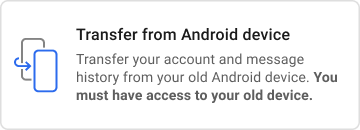
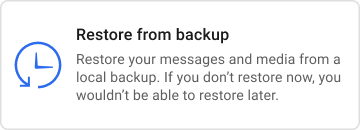
- Don't have your old device? Select Restore from backup if you've previously made a backup. Then follow the steps here.
- Select Transfer from Android device if you have your old phone available. Then follow the steps here.
How do I transfer from an Android device?
- On the new phone, install Signal > select Transfer or restore account > enable permissions > select Transfer from Android device > Continue.
- On the old phone, go to Signal Settings
 > Account > Transfer account > Continue.
- Physically move the new phone near the old phone and accept the alert on the new phone.
- Confirm the 7-digit code matches on both phones and select Continue on each phone.
- On the new phone, tap Continue registration and register the device.
- On the old phone, tap Done to complete.
- On the old phone, uninstall Signal typically in Android Phone Settings > Signal > Uninstall or through steps specific to your phone.
Still having trouble?
- Disable your VPN or Wi-Fi Hotspot that interferes with Wi-Fi Direct connections.
- Enable permissions for Signal:
Android Phone Settings > Apps or Apps & Notifications > Signal > App Permissions or Permissions > Enable all permissions. - Restart both phones.
How do I restore from a backup file?
- On the phone that has your Signal message history, go to Signal Settings > Backups > tap On-device backups.
- Record the 30-digit passphrase.
-
Manually move the
Signalfolder that contains the backup file.- Same phone? Manually move the backup to a computer before you reset this phone.
- New phone? Manually move the backup file from your old phone to your new phone.
- On the new phone, install Signal select Transfer or restore account, select restore from backup, and enter your 30-digit passphrase to restore before submitting your phone number for registration.
How do I enable a backup?
- Tap on the profile icon to access Signal Settings > Backups > On-device backups > Turn on.
- For Android OS version 9 or earlier, go to step 3.
For Android OS version 10 or later, select Choose folder and choose where to save the backup file. - Copy the 30-digit passphrase from left to right, top to bottom. You will need this passphrase in order to restore a backup. Keep it in a safe place.
- Confirm that you have written down the passphrase.
- Select Enable backups.
- Tap Create backup. You can verify whether or not a backup has completed successfully by checking the time of the last backup.
- Signal displays where you can find the backup under the title Backup folder. Go to that folder.
- Move or save a copy of the backup on a device that is not your phone.
- A common method is to use a cable to plug your phone into your computer. Some phone's require you to use a cable that was provided with your phone in order to transfer data.
Click here to scroll up to the steps to restore messages.
What if my last backup says "Never"?
- Tap Create backup.
- Enable permissions for Signal:
Android Phone Settings > Apps or Apps & Notifications > Signal > App Permissions or Permissions > Enable all permissions. - Free up space on your phone.
- Temporarily unmount or disable your external SD card so the backup can be saved to your internal memory.
Where can I find the backup file?
- Your backup folder is listed under Signal Settings > Backups > On-device backups > Backup folder. Use the files app or plug your phone into a computer to go to the folder.
- For older versions of Signal, the backup file
signal-year-month-date-time.backupcan be found at/Internal Storage/Signal/Backupsor/sdcard/Signal/Backups
Where do I move the backup file?
Move the backup file signal-year-month-date-time.backup to a device that is not your phone.
- A common method is to use a cable to plug your phone into your computer. Some phone's require you to use a cable that was provided with your phone in order to transfer data.
- Recent phones offer steps in Android Phone Settings > Storage.
- You may need to respond to the notification that appears on your phone to change the mode to Transfer files (MTP).
What do I do on my new phone or phone that was reset?
- Manually move the
Signalfolder with the backup file to your phone. For older versions of Signal, move it to the top most level or/Internal Storage/on your restored or new phone.- A common method is to use a cable to plug your phone into your computer. Some phone's require you to use a cable that was provided with your phone in order to transfer data.
- Recent phones offer steps in Android Phone Settings > Storage.
- You may need to respond to the notification that appears on your phone to change the mode to Transfer files (MTP).
- Install Signal.
- Select Restore backup. If it is not available, Select Continue.
- If you selected Continue in step 3, then
- Accept the permissions.
- Signal will automatically detect your local backup and ask you to restore before registration. If it is not detected, try the steps below.
- Select Restore backup.
- If you selected Restore backup in step 3, choose the backup folder and file.
- Enter your 30-digit passphrase.
Click here to scroll up to the steps to restore messages.
What if I forget my 30-digit passphrase and need to restore messages on a new phone?
You will be unable to restore a backup without the passphrase. Think of the 30-digit passphrase as a key that can not be duplicated. You can create a new backup to create a new passphrase.
Go to Signal Settings > Backups > On-device backups.
- Tap Turn off to disable chat backups and delete all previous backups on your phone.
- Tap Turn on to create a new backup with a new passphrase.
I need some more help.
- Make sure you moved the backup file to your new phone, or moved it onto your phone that was reset.
- Some devices may need to power down and restart to see the backup file.
- Make sure the backup file is visible. As a reminder, backup filenames follow this format:
signal-year-month-date-time.backup - Enable all the permissions for Signal.
- The media permission is required in order to locate backup files on your device storage.
- Here's another way to make sure your backup file is in the correct spot on your new phone.
- On your new phone, register for Signal without a backup (your old phone will now go offline).
- Enable a backup on your new phone.
- Find the new backup on your new phone and write down where it is. Look at the file name to confirm you just made this backup.
- Uninstall Signal on the new phone.
- Carefully find your old backup. Look at the date and time in the file name.
- Move the old backup to the same folder you found in step 3.
- Install Signal.
Click here to scroll up to the steps to restore messages.
iOS
You can set up Signal on a new device using information from your current device.
- Click here if you have an new iPhone, and want to move Signal onto that new iPhone.
- Click here if you restored to factory settings, do not have a working camera, or do not have your old iPhone.
- Click here if you have a linked iPad but not your old iPhone.
- Click here to jump to additional help.
- Click here if you have an iPhone and setting up a new iPad.
Which devices can I transfer the account from?
- iPhone → iPhone
- iPhone → iPad as a separate device
- iPad → iPad
- iPad as a separate device → iPhone
- Click here to see what is not supported.
What happens with a transfer?
- The new device has all the account info and message history.
- The old device deletes all the account info and message history.
- Message history is not copied to the other device. It is moved.
Requirements
- Make sure both devices have
- Updated to Signal version 7.85 or later.
- Enabled the Local Network permission in
 iOS Settings > Signal
- Wi-Fi enabled
- Bluetooth enabled
- Low Power mode disabled in iOS Settings > Battery
- Your new device
- is physically close to your old device.
- needs to complete registration if it is an iPhone, iPod touch, or unlinked iPad.
- can register with the same number on your old device.
- Your old device
- needs a working camera.
- will delete your message history after the transfer is complete.
How do I transfer my account and messages to a new iPhone, iPad, or iPod touch?
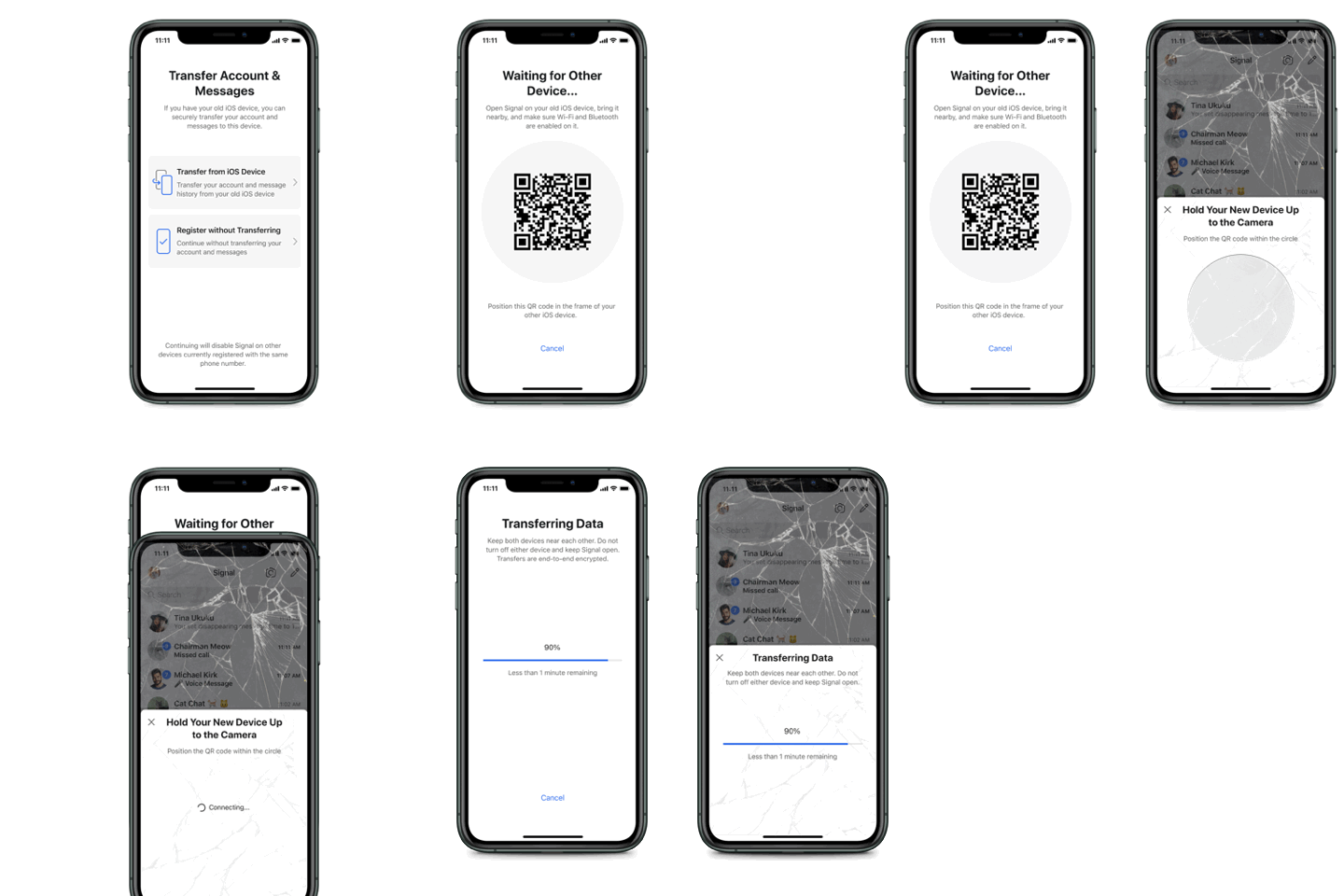
Choose a time when you won't need to use either device for several minutes.
- On your new device, install and open Signal, and complete registration, if prompted.
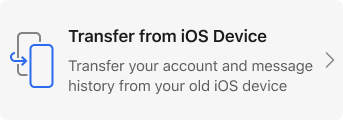
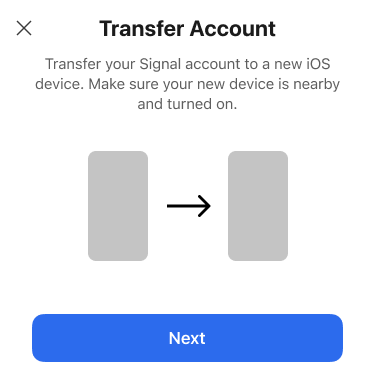
- Select Transfer from iOS Device and select Next (linked iPad only) to see a QR code.
-
On your old device, select Next and physically move it to scan the QR code from step 2.
- When the transfer is complete,
- send a message from your new device.
- your message history is deleted from your old device.
Can I merge my message history?
No. Your message history is moved to your new device. Your old device will be unregistered.
How do I enable a backup? Can I use an iCloud backup?
- Storing messages outside of your active Signal device is not supported.
- Messages are only stored locally.
- An iTunes or iCloud backup does not contain any of your Signal message history.
Does this use my Signal PIN?
This migration is separate from registration and your Signal PIN but you will need to complete both before transferring.
I need some more help.
| What is the issue? | Steps to resolve |
| Registered too often. | Please wait an hour then try to register again. |
| The Local Network permission is missing. |
On each device,
|
| The Transfer Account option does not appear or is stuck. |
On the new phone,
|
| The QR code does not scan. |
|
| There is an alert Wrong Device after scanning the QR-code. |
You can not transfer from a linked iPad to your phone.
|
|
There is information about linking a device.
|
This is not the account transfer option.
|
|
The old phone scanned the QR code and is stuck at Connecting...
|
|
|
There is an alert the Transfer couldn't complete.
|
|
|
The transfer moved off your old phone and you are asked to register again.
|
|


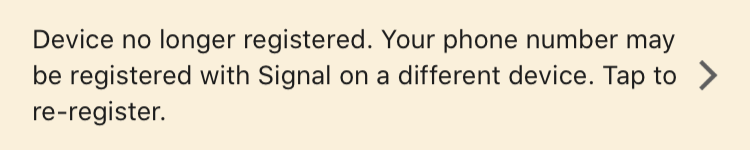
Can I transfer from Signal iPad or Signal Desktop to my phone? I still see messages on my linked iPad or Desktop.
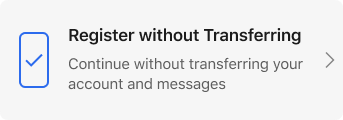
No. Linked devices do not have the same account information as your phone. On your new phone, select the option to Register without Transferring to continue.
What do I do if I do not have my old device, restored my phone to factory settings, or lost my phone?
Messages are only stored on your devices. Without an existing message history accessible to you account transfers are not supported.
- On your new device, install and open Signal, and complete registration, if prompted.
-
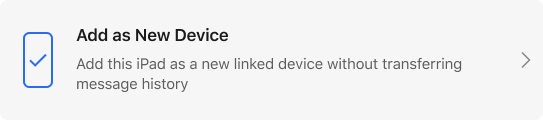
Select the option to Register without Transferring or Add as New Device (iPad Only).
- iPhone
- iPod touch
- iPad as a separate device
Desktop
Which devices can I transfer data from?
- Signal Desktop does not support transferring message history to or from any device.
- Migration Assistant and Time Machine for macOS are not supported.
How do I resolve issues if I transferred one computer OS to another?
Manually transferring folders is not supported and may result in errors. Signal uses a stateful protocol, meaning that you cannot simply copy files to another instance of Signal or copy files after linking and using Signal.
To resolve Chat session refreshed, A message from [contact] could not be delivered, or Message received was out of sync errors, follow these steps:
- On your old computer, shutdown and quit Signal Desktop.
- From your mobile device, unlink Signal Desktop.
- On your new computer, restart Signal Desktop.
- From your mobile device, link Signal Desktop on your new computer.
- On your old computer, uninstall and delete all data for Signal Desktop:
-
Windows
Replace <YourName> with your Windows User in the steps below- Select Uninstall Signal.exe in
C:\Users\<YourName>\AppData\Local\Programs\signal-desktop - Delete
C:\Users\<YourName>\AppData\Roaming\Signal
- Select Uninstall Signal.exe in
-
macOS
- Delete the Signal.app file from the
/Applicationor~/Applicationdirectory - Delete local data from
~/Library/Application Support/Signal
- Delete the Signal.app file from the
-
Linux
- Use
apt-get remove signal-desktop - Delete
~/.config/Signal
- Use
-
Windows