
Follow these steps to manage data usage for each device.
Did you mean to view:
Android
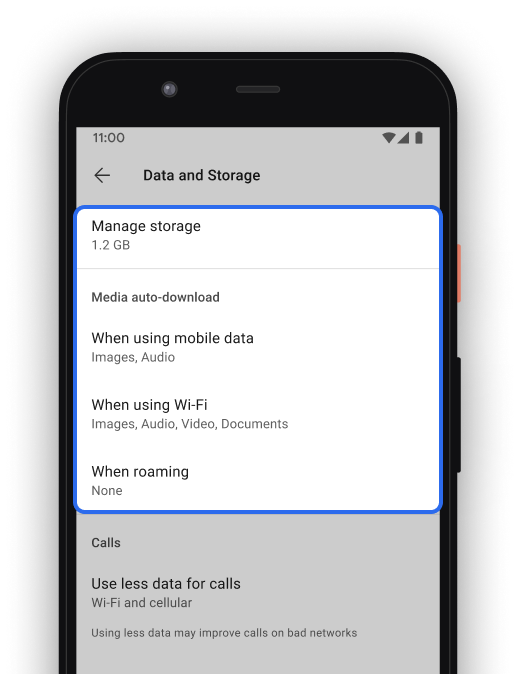
To manage media auto-download settings:
- In Signal, tap your profile
 > Data and Storage
- Select the network status
- When using mobile data
- When using Wi-Fi
- When roaming
- Choose which message attachment types you allow. Voice messages, view-once media, and stickers (under 100kb) are always auto-downloaded. All attachments downloads are paused while you are on a call.
- Images
- Audio
- Video
- Documents
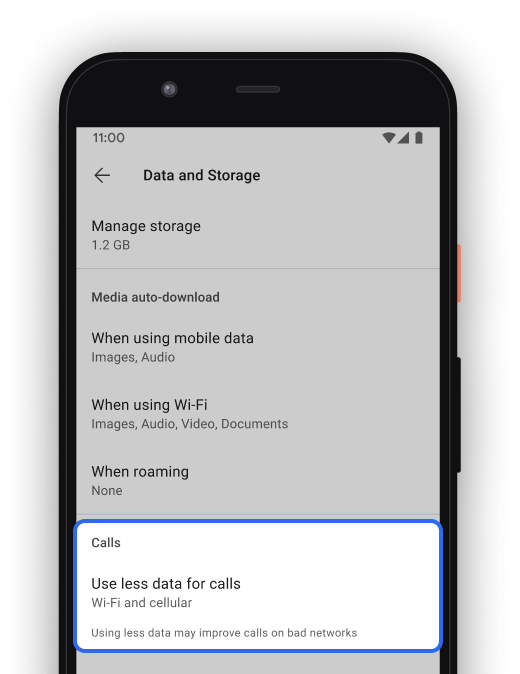
To use less data for calls:
In Signal, tap your profile > Data and Storage > Use less data for calls and select one of the following:
- Never
- Mobile data only
- Wi-Fi and mobile data
iOS
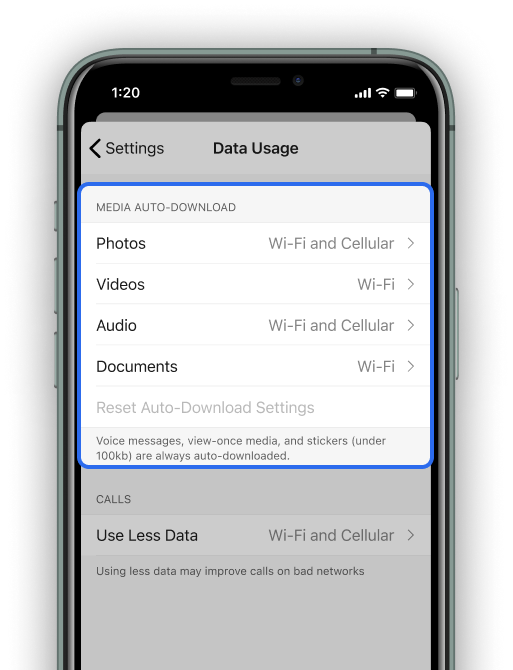
To manage media auto-download settings:
- In Signal, tap your profile > Settings > Data Usage
- Choose which message attachment types you allow. Voice messages, view-once media, and stickers (under 100kb) are always auto-downloaded. All attachments downloads are paused while you are on a call.
- Images
- Audio
- Video
- Documents
- Select the network status
- Never
- Wi-Fi
- Wi-Fi and Cellular
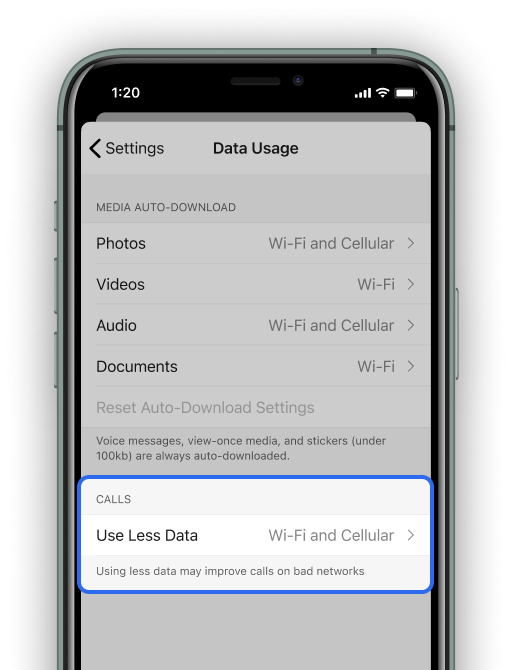
To use less data for calls:
In Signal, tap your profile > Settings > Data Usage > Use Less Data and select one of the following:
- Never
- Cellular Only
- Wi-Fi and Cellular
Desktop
Signal Desktop uses your Wi-Fi connection for all file types and calls.